
Open the machine control with M, the Machine button at the top right or the Machine tab of the right panel. Hold, Resume, Stop and Disconnect are always at the top.
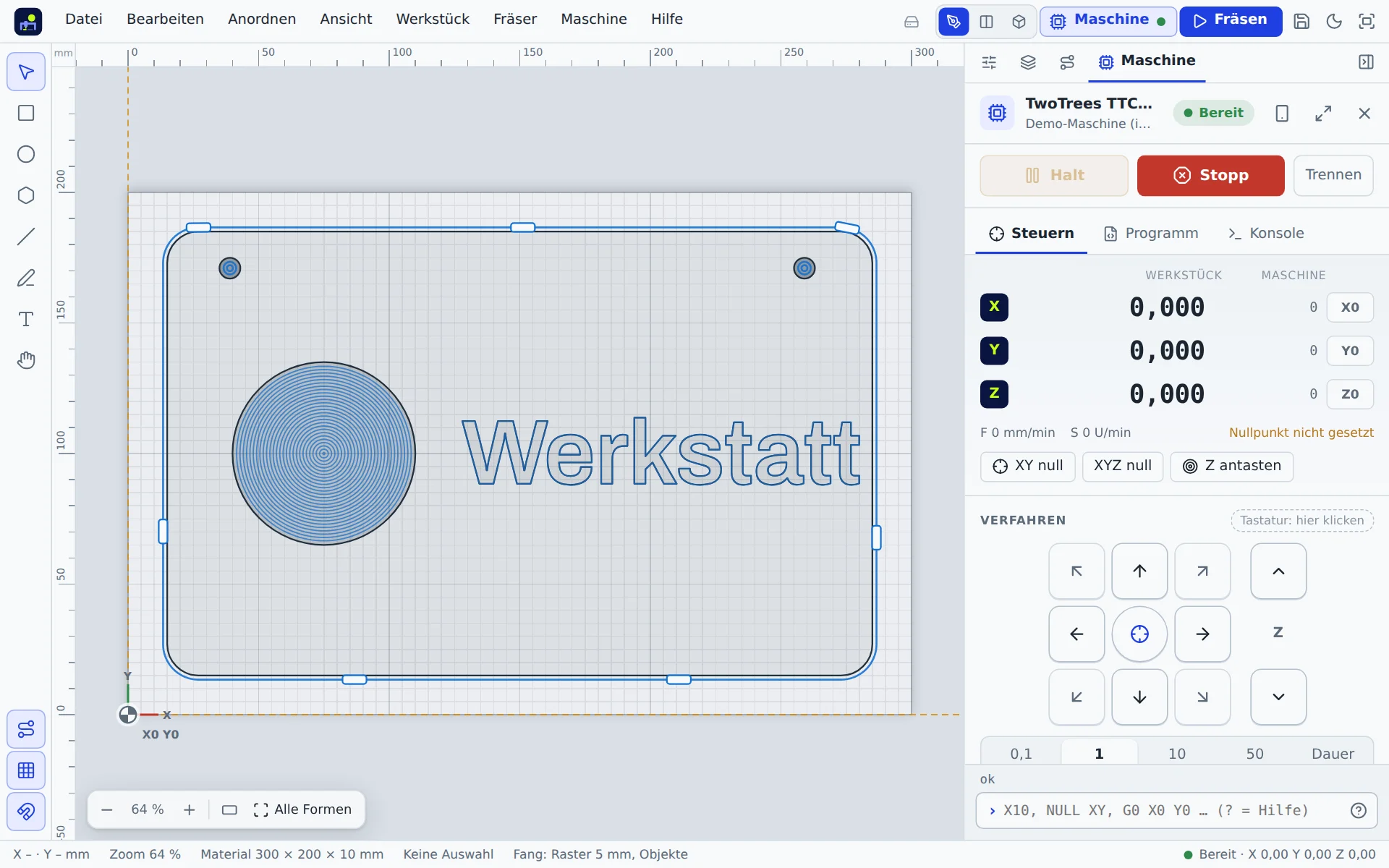
Jogging
The jog pad moves X and Y, the buttons next to it Z. Choose a step of 0.1, 1, 10, 50 or 100 mm or Continuous: the axis moves while you press and stops immediately when you let go. Downwards, Z moves at most 10 mm per step.
When the machine control has focus, the arrow keys move X and Y, Page Up and Page Down move Z. After homing, all moves stop at the edge of the work area.
Move here: with Pick target on the canvas or right-click → Move machine here, the machine moves to a point of the drawing, first Z to safe height, then sideways. Corners and centre of the material snap.
Setting zero
- Move the bit exactly above the point that is the project's zero (usually the bottom left corner of the material).
- Click XY zero. If the bit is above another corner or the centre of the material, the app moves the project's zero there and tells you (undo reverts it).
- Set Z on the surface: with the touch plate (Probing Z) or by hand with a sheet of paper, then Z zero.
On the canvas the zero symbol turns blue once it is set on the machine. Go to zero returns there at any time.
More buttons
- Home and Unlock (Homing).
- Park: Z all the way up and to the park position, for example to change the workpiece. The small button next to it stores the current position as your own park position.
- Spindle: on and off, with speed depending on the control type.
- Feed and Speed: overrides in percent, also while cutting. The tempo in the job display goes up to 500 %.
Large control
The button with the arrows at the top of the machine control enlarges it to fill the screen, with a large position display and large buttons, ideal on a tablet next to the machine. Esc returns.
Program and Console tabs
Program shows the loaded program with duration, warnings and the “fits the work area” check. This is also where you open other G-code files. Console shows every line between the app and the controller.
Command line
Type commands at the bottom of the machine control. Up recalls earlier commands, ? lists them all.
| Input | Effect |
|---|---|
X10 Y-5 | relative move |
AX20 AY0 | absolute move (work coordinates) |
MX… | move in machine coordinates |
X=0 | set the current position to a value |
NULL XY | set X and Y zero here |
XY, XYZ | go to zero |
H, R | Z up / down |
F800, S12000 | feed / spindle speed |
AN, AUS | spindle on / off |
REF, ENTSPERREN, TASTEN, PARKEN | home, unlock, probe Z, park |
G-code or $ command | is sent directly, see the G-code reference |
The short commands are German words: NULL = zero, AN/AUS = on/off, H/R = up/down.