
Set up the machine
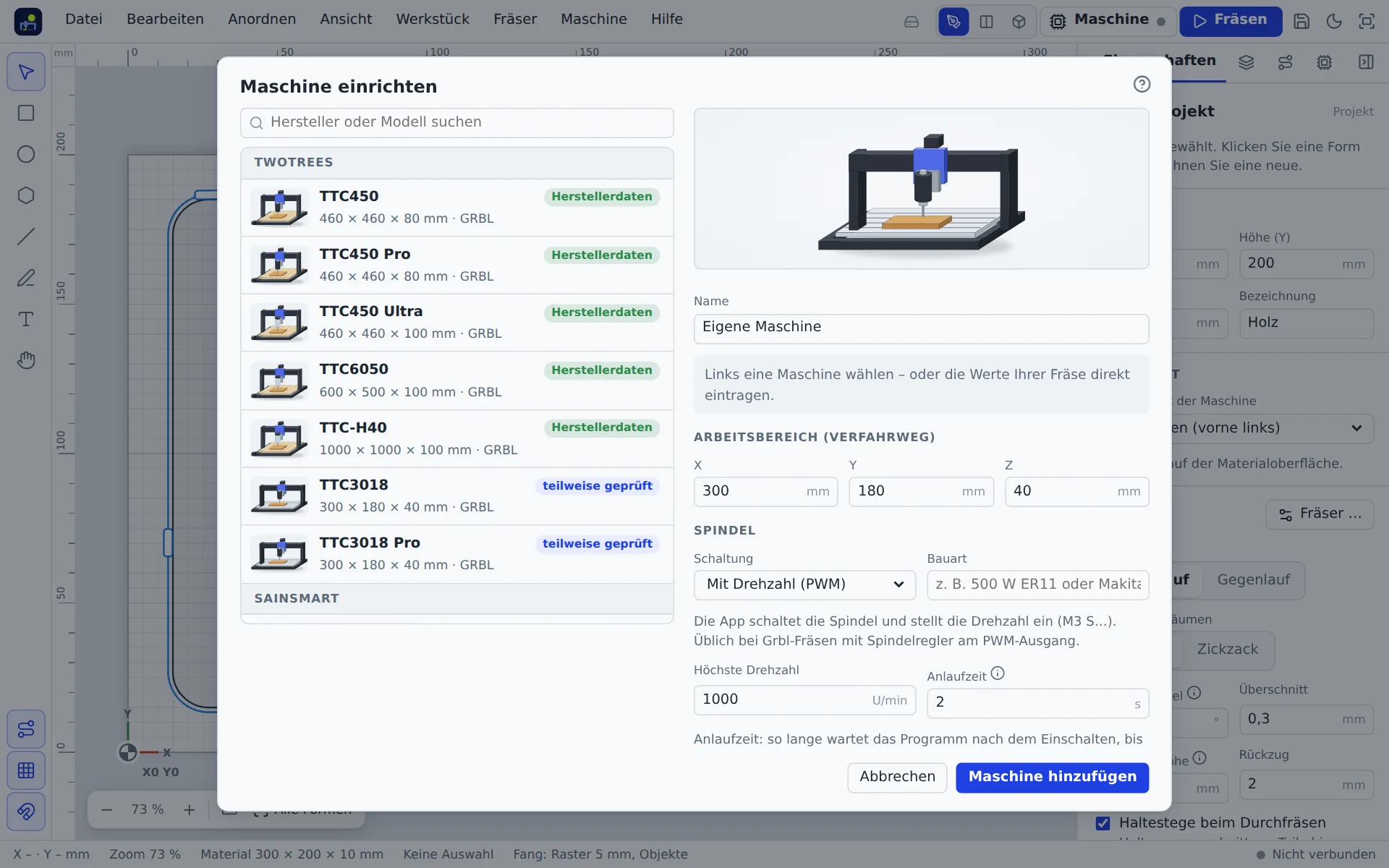
Machine → Set up machine … shows a catalogue of known machines on the left (all TwoTrees models and many other makers) and templates such as “3018 without brand”. Choose your machine or Other machine and enter the values yourself.
| Field | Meaning |
|---|---|
| Work area | Travel in X, Y and Z in mm. The canvas shows it dashed. |
| Spindle: control | With speed (PWM): the app sets the speed. On/off only: the app switches, you set the speed on the dial. By hand: the app switches nothing and reminds you. |
| Maximum speed | The app converts cutting data to this. |
| Homing corner | Corner the machine homes to (only with limit switches). |
| Plate thickness | Thickness of your touch plate for probing Z. |
| Jog X/Y, Z | Speed when moving by hand. |
The machine travels with your account to every device. After connecting, the app compares work area and spindle speed with the controller and offers to take over the real values.
Spin-up time
How long the program waits after switching on the spindle before the bit enters the material. The default is 2 s. Spindles on a VFD often need 5 to 8 s to reach full speed. A bit that plunges too early can break.
Safe height
Height above the work zero to which the machine raises Z before moving sideways by hand, with Go to zero or with Move here. Choose it higher than your clamps.
Connect over USB
- Switch on the machine and connect it to the computer with a USB cable.
- Use Chrome or Edge (Firefox and Safari have no Web Serial).
- Click Machine → Connect via USB or Connect in the machine control (M).
- In the browser's window choose the port, often “USB Serial” or “USB-SERIAL CH340”.
The app remembers the port and connects without asking next time. It recognises Grbl 0.8 to 1.1, grblHAL and FluidNC and finds a different baud rate by itself.
Demo machine
Machine → Start demo machine simulates a Grbl machine in the browser, with homing, limits, probing and cutting. Ideal for practice. Once your machine is set up, the demo behaves like it.
Disconnect
Disconnect in the machine control or the Machine menu. If the cable is pulled during a job, the app notices and reports it; the machine then stops.