
During homing the machine moves slowly against its limit switches. Afterwards it knows exactly where it is, even after being switched off. Only then does the app know the work area and can prevent moves beyond it.
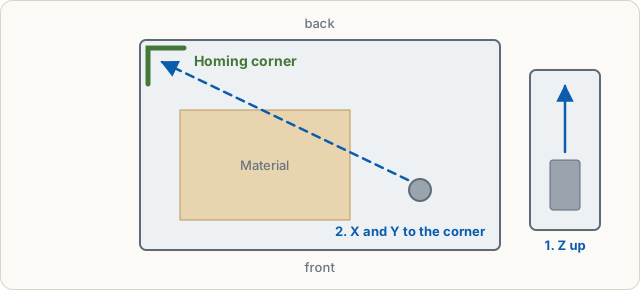
Sequence
- Z moves up to its switch.
- X and Y move together into the homing corner.
- Each axis touches its switch a second time slowly and backs off a little.
Start it with Home in the machine control, in the carve wizard or from the alarm note. During homing the app shows the steps, the position and the corner.
Which corner?
The corner is stored in the controller in $23. Without changes Grbl homes to the back right. Many hobby machines use the back left or front left. In the machine control under Machine → Homing you see corner, order, distances and speeds.
Check corner and directions
After the first homing on a real machine, the app asks where the machine actually is and moves X and Y 10 mm away from the switch each. You tell it which way it went. If something does not match, the app proposes the fix ($3 for direction, $23 for the corner) and only writes it when you click Correct. You can repeat the check at any time with Check corner and directions.
Without limit switches
If your machine has no limit switches ($22=0), there is no homing. Move the machine to the zero point by hand and set it there (Machine control). If the controller is locked, Unlock helps.