
Layers organise the drawing and carry cut settings: cut type, depth, cut through and bit. Every shape on the layer is cut that way unless it has its own settings.
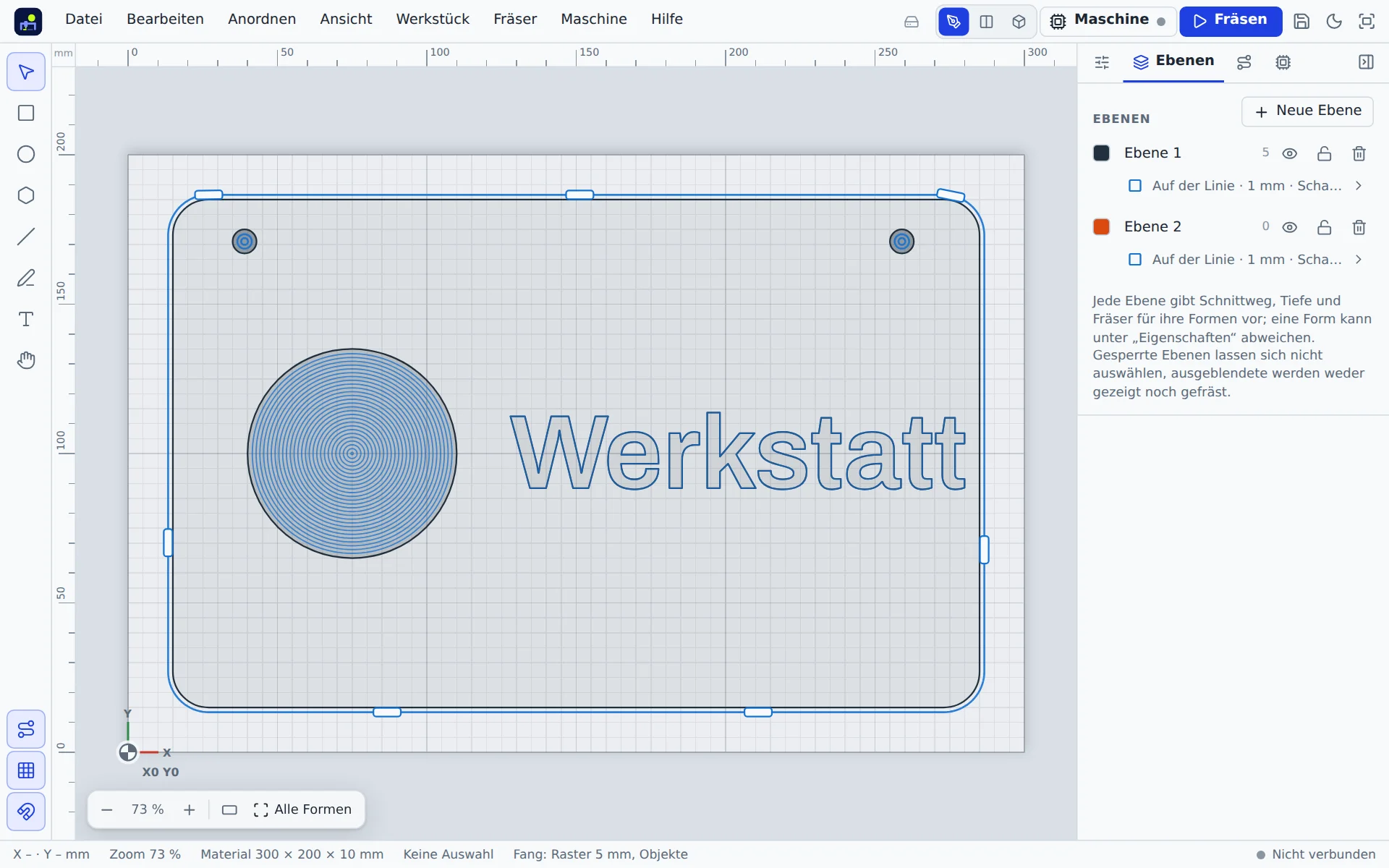
Working with layers
In the Layers tab of the right panel:
- add a New layer, change name and colour,
- show and hide (hidden layers are neither cut nor exported),
- lock (shapes can no longer be selected or moved),
- delete (the shapes move to the first layer; the last layer always stays).
New shapes go to the first layer that is not locked; lock layers that should not receive new shapes. Under Properties you move a shape to another layer.
Layer cut settings
Clicking the summary below the layer name opens the cut editor. What you set here applies to all shapes on the layer. A single shape can differ: the cut popup then says “Differs from layer …”, and Like layer resets it.
From CAD files
When you import a DXF file with several layers, the app creates one layer per DXF layer. Existing layers with the same name are reused, and their cut settings apply right away. PDF files are split into layers by colour, HPGL files by pen.