
CNC.myWerkzeug.de is a complete CNC program in your browser: draw or import your part, decide how deep and with which bit it is cut, preview the result in 3D and control your machine directly over USB. Nothing to install.
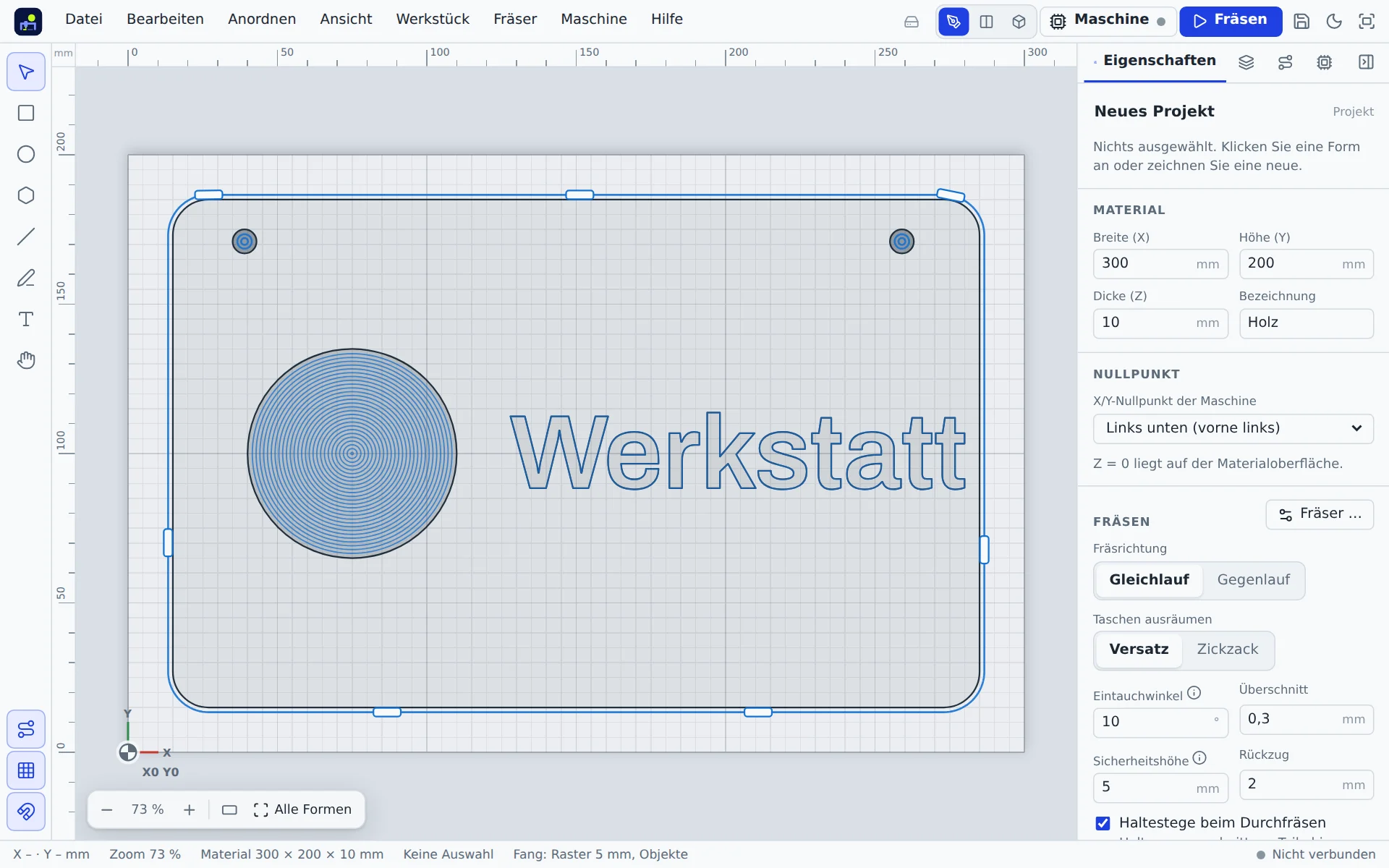
From idea to finished part
- Create a project: choose the material and size (First project).
- Draw or import: shapes, text, SVG, DXF, PDF or an image (Drawing, Import).
- Set up the cut: cut type, depth and bit for each shape or layer (Toolpaths).
- Check: 3D simulation (Simulation).
- Cut: connect the machine and follow the carve wizard (Start cutting).
The screen
| Area | Purpose |
|---|---|
| Top bar | Menus, Undo and Redo buttons (grey when there is nothing to undo or redo), project name, save status, view (Drawing, Split, 3D), Machine, Carve button |
| Toolbar on the left | Select, rectangle, circle, polygon, line, polyline, text, pan |
| Canvas | Material, your shapes, toolpaths and later the machine's bit |
| Right panel | Tabs Properties, Layers, Cutting and Machine |
| Bottom left | Zoom, fit material, all shapes |
Collapse the right panel with Ctrl+. or the button at the top of the panel. The tabs stay visible at the edge.
Which browser?
Any current browser is fine for drawing. To connect to the machine the app needs Web Serial, which Chrome, Edge and Opera offer on desktop computers. Firefox and Safari do not; there the demo machine lets you try everything.
Keyboard shortcuts
The most important shortcuts. On a Mac use ⌘ instead of Ctrl. Help → Keyboard shortcuts or the ? key shows the full list.
| Key | Action |
|---|---|
| Ctrl+K | Search commands: find every feature, template, setting and help article from the keyboard |
| V | Select |
| R / E / P | Rectangle / circle / polygon |
| L / Z / T | Line / polyline / text |
| H or hold Space | Pan the view |
| Ctrl+Z / Ctrl+Shift+Z | Undo / redo |
| Ctrl+D | Duplicate |
| Ctrl+0 | Fit material |
| Shift+1 | Zoom to all shapes |
| Ctrl+S | Save as file |
| Ctrl+I / Ctrl+E | Import / export |
| M | Show or hide the machine control |
| F1 | Help for the window you are in |
Settings
View → Settings … (Ctrl+,) has seven tabs:
- Appearance & design: light or dark, glow in dark mode, material colour, grid, crosshair and touch mode.
- Drawing: snapping, grid spacing, cut popup and text bar at the selection.
- Companion: the character that gives tips, and how much it helps (beginner, advanced, pro).
- Machine: soft limits, your own park position and the controller for saved G-code files of the active machine.
- Features: switch packages such as PCBs, reliefs, V-carving, rotary axis, cut list, signs, workpiece photo and handwheel off and on again. Anything switched off disappears from menus, “New project”, start cards and templates; Ctrl+K still finds it and switches it back on. To suit my machine suggests what the active machine does not need. If you open a project that uses a switched-off feature, it is on for that project.
- Sounds: fanfare, gong, beeps, voice or off when a job starts and ends.
- Language, units and account: German, English or Spanish, millimetres or inches, sign-in.
The menus are ordered by task: Draw holds all tools, motifs and image tracing; less common commands sit in submenus (▸) that open on hover or with →.
With an account, your settings apply on every device.
Touch mode
For tablets and touchscreens, Appearance & design has Touch mode: Off (default), On or Automatic (on when the device is operated by finger; the app also recognises an iPad that reports itself as a Mac in the browser). On tablets the menu bar and menu entries are always finger-sized, even without touch mode. When it is on:
- Buttons, menus and fields get larger with more spacing, and so do the handles of the selection.
- Two fingers on the canvas: spread to zoom, move together to pan the view.
- Long-press instead of right-click: on the canvas it opens “Move here” when a machine is connected.
- Hints: long-press a button to see what it does without triggering it.