
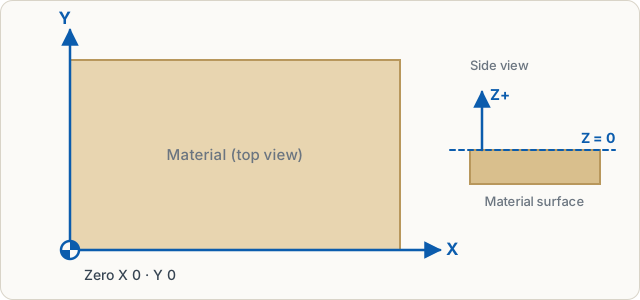
All sizes are in millimetres. The origin is at the bottom left of the material, X points right, Y points up, just as the machine calculates later.
Tools
| Tool | Key | How |
|---|---|---|
| Select | V | Click or drag a box; Shift adds to the selection |
| Edit points | N | Drag the points and curves of a shape, or double-click the shape, see Edit points |
| Rectangle | R | Drag; Shift = square |
| Circle/ellipse | E | Drag; Shift = circle |
| Polygon | P | Drag; set the number of corners on the right |
| Star, gear, spiral | S | Pick the kind at the top, drag out from the centre, see Star, gear, spiral |
| Line | L | Click start and end; Shift = 15° steps |
| Polyline | Z | Click points; Enter finishes, clicking the start point closes the shape |
| Curve pen | B | Click sets a corner, click and drag a smooth point; clicking the first point closes, Enter finishes open |
| Text | T | Click and type, see Text |
| Measure | D | Drag to measure distance, angle and crossings with shapes; click a shape for its perimeter and area, see Measure |
| Pan | H | or hold Space |
Exact sizes
On the right under Properties you find position (X, Y), width, height and rotation of the selection. You can type calculations into any number field: 300/3 or 25+4.5. Up and Down in the field change the value, with Shift in steps of ten. Proportional keeps the aspect ratio.
Arrow keys move selected shapes by 1 mm, with Shift by 10 mm, with Alt by 0.1 mm.
Snapping and grid
While drawing, the pointer snaps to the grid (5 mm) and to corners and centres of other shapes. Hold Alt while dragging to switch snapping off briefly. Set grid spacing and snapping under View or in the settings (Drawing tab). The crosshair with marks in the rulers shows the exact pointer position.
View
- The mouse wheel zooms, with Shift it scrolls sideways.
- Ctrl+0 fits the material, Shift+1 shows all shapes, Shift+2 the selection.
- At the top switch between Drawing, Split and 3D.
Edit and arrange
Copy, paste, duplicate (Ctrl+D), group (Ctrl+G) and undo (Ctrl+Z) work as usual. Delete with Del or, without a keyboard, with the bin below the selection or at the top of Details. On the right under Arrange and in the menu of the same name you align shapes, distribute them evenly, mirror them and rotate, scale or skew them exactly by number, see Arrange. How to merge shapes or create an outline is explained in Editing shapes.