
Set up the machine
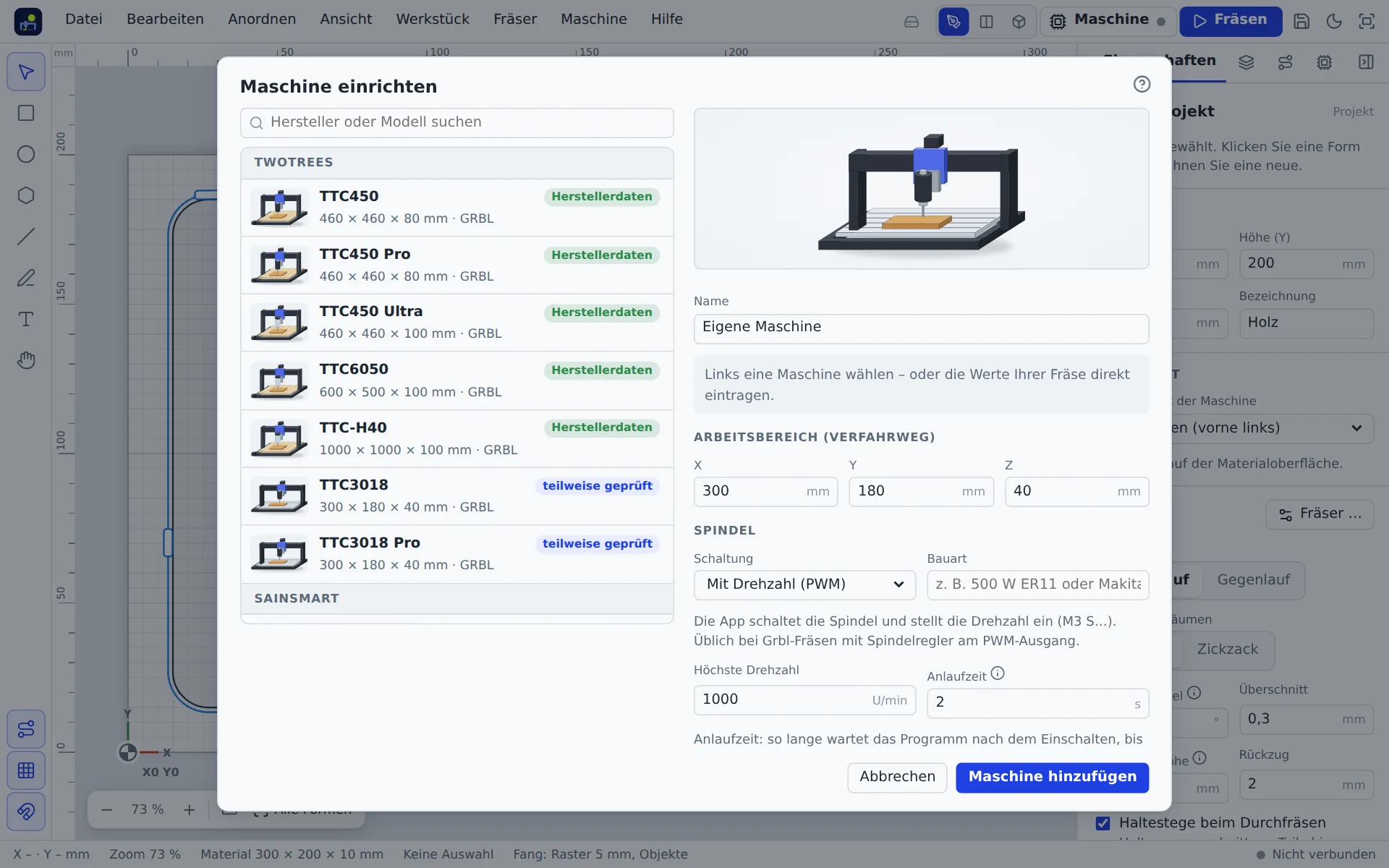
Machine → Set up machine … shows a catalogue of known machines on the left (all TwoTrees models and many other makers) and templates such as “3018 without brand”. Choose your machine or Other machine and enter the values yourself.
| Field | Meaning |
|---|---|
| Work area | Travel in X, Y and Z in mm. The canvas shows it dashed. |
| Spindle: control | With speed (PWM): the app sets the speed. On/off only: the app switches, you set the speed on the dial. By hand: the app switches nothing and reminds you. |
| Maximum speed | The app converts cutting data to this. |
| Homing corner | Corner the machine homes to (only with limit switches). |
| Plate thickness | Thickness of your touch plate for probing Z. |
| Jog X/Y, Z | Speed when moving by hand. |
The machine travels with your account to every device. After connecting, the app compares work area and spindle speed with the controller and offers to take over the real values.
Spin-up time
How long the program waits after switching on the spindle before the bit enters the material. The default is 2 s. Spindles on a VFD often need 5 to 8 s to reach full speed. A bit that plunges too early can break. The app also adds the spin-up time to opened G-code files when no pause (G4) follows the spindle start (M3/M4); the milling assistant tells you.
Safe height
Height above the work zero to which the machine raises Z before moving sideways by hand, with Go to zero or with Move here. Choose it higher than your clamps.
Connect over USB
- Switch on the machine and connect it to the computer with a USB cable.
- Use Chrome or Edge (Firefox and Safari have no Web Serial).
- Click Machine → Connect via USB or Connect in the machine control (M).
- In the browser's window choose the port, often “USB Serial” or “USB-SERIAL CH340”.
The app remembers the port and connects without asking next time. If you reload the page (F5), it reconnects by itself when the machine was connected before. It recognises Grbl 0.8 to 1.1, grblHAL and FluidNC and finds a different baud rate by itself.
If the controller reports its machine name when connecting (for example the TwoTrees TTC450 Ultra), the app suggests the matching profile from the machine catalogue, but only while you have not chosen a machine yet. Use profile creates it, Choose myself opens the machine selection. If the controller reports a manufacturer firmware version, it appears in the “Machine connected” message.
Connect via Wi-Fi
Many newer CNC machines and lasers have a Wi-Fi controller (ESP32: Grbl_ESP32, FluidNC, ESP3D, MKS DLC32, TwoTrees with LKS firmware). Browsers may not open connections into the home network from a secure page. A small helper program, the myCNC Bridge, therefore passes the data on through your computer. It needs no installation and also works with Firefox and Safari.
- Open Machine → Connect via Wi-Fi … and download the bridge for your system (Windows, macOS, Linux).
- Start the bridge and keep its window open. On first start Windows warns (“Windows protected your PC”) because the program is not signed: More info → Run anyway. On macOS (older Macs with an Intel processor have their own file) and Linux, make the file executable in the terminal and start it; the window shows the commands. If macOS reports an unverified developer: System Settings → Privacy & Security → Open Anyway.
- The window shows “myCNC bridge is running”. Search home network briefly asks every device in your network and lists the Grbl controllers by name. One click connects. If you know the machine's address, enter it below (port usually 23).
The app remembers the machine and reconnects via Wi-Fi on reload (F5). Unlike USB it does not reset the controller when connecting, so a job running from the SD card keeps going. A machine can only be connected in one window at a time.
Put the machine on Wi-Fi
If the machine is not on your Wi-Fi yet, connect it once via USB and open Connect via Wi-Fi. Under Put the machine on Wi-Fi the app reads which Wi-Fi commands the controller knows (ESP3D or FluidNC), shows the current address and, after one click, writes network name and password into the controller. The controller then restarts and joins the home network. The password never appears in the log. The characters ? ! ~ and non-ASCII letters are not possible there because Grbl reads them as realtime commands.
Demo machine
Machine → Start demo machine simulates a Grbl machine in the browser, with homing, limits, probing and cutting. Ideal for practice. Once your machine is set up, the demo behaves like it.
Disconnect
Disconnect in the machine control or the Machine menu. After disconnecting, the app no longer reconnects by itself on reload. If the cable is pulled during a job, the app notices and reports it; the machine then stops.