
If you have worked with LightBurn so far, bring your files along: File → Import … (Ctrl+I), card LightBurn, or simply drag the file onto the canvas. The app recognises the kind by extension and content; a project copied from an editor can also be pasted with Ctrl+V.
| File | What it becomes |
|---|---|
Project .lbrn2, .lbrn | Shapes, text, images and groups as a drawing; each LightBurn layer becomes a layer with a laser profile. |
Material library .clb | Each entry a laser profile; with an account optionally shared as your own values. |
Device profile .lbdev | A machine profile with work area, baud rate, S range and macro buttons. |
Bundle .lbzip | A window shows everything in the bundle; you choose what to import (Bundle). |
Projects
Imported are rectangles (also with rounded corners), ellipses, paths with lines and curves, groups with all nesting, rotations and scales, and the position on the work area. If the drawing lies outside the material it is placed in the centre. One Ctrl+Z takes back the whole import.
- Layers: Each LightBurn layer (C00, C01 …, with its colour) becomes a layer. In Laser.myWerkzeug.de a laser profile is created per layer with power, speed (LightBurn stores mm/s, here mm/min applies), passes, line interval and angle, cross-hatch, overscan, Z step, air and tabs. Line (Cut) becomes “on the line”, Fill (Scan) becomes “Fill”; “Fill + Line” becomes fill, add a second layer for the line. Layers with output off are kept but set to “do not laser”.
- Text: LightBurn usually stores the text outline in the file; the text then arrives exactly as it looked in LightBurn. Without an outline the app sets the text with its own font (bold if it was bold in LightBurn); change font and size in the text tool.
- Images: Embedded images become image engravings with the file's dither mode (Jarvis, Stucki, Atkinson, Floyd-Steinberg, Ordered, Grayscale, Threshold). Set brightness, contrast and gamma in the laser profile.
- Kerf: If a line layer in LightBurn has a kerf offset, it cuts outside here (positive value) or inside (negative value), and the amount is stored in the laser profile as kerf offset. Parts keep their size just as in LightBurn.
- In CNC.myWerkzeug.de the layers are created but the laser values are not imported; set cutting depth and tool per layer, images become reliefs.
Material library
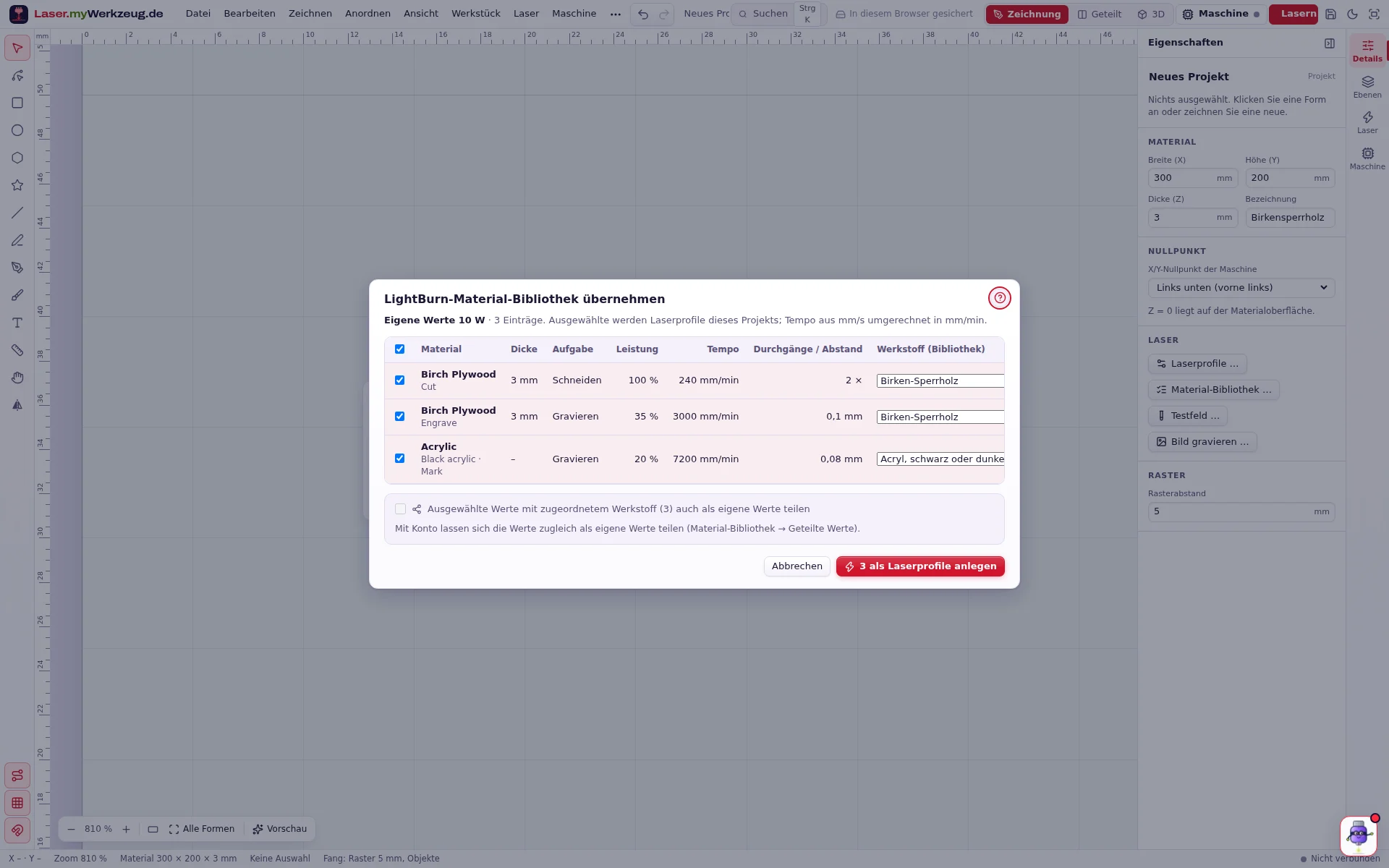
After the import a window shows each entry with material, thickness, task, power, speed and passes or line interval. Selected entries become laser profiles of the project (“Birch Plywood · 3 mm · Cut”). The Material column assigns the entry to a material of the material library (suggested from the name, changeable). With an account the values can also be shared as your own values; they appear anonymously under “Shared values” and can be withdrawn there at any time. Share only values you have tested yourself and state your laser power.
Device profile
The window shows device, work area, controller, baud rate, maximum S value and the macros. “Create as machine profile” adds the machine under Machine → Set up machine; start and end G-code from LightBurn become macro buttons, as do the LightBurn macros. Grbl controllers (GRBL, GRBL-LPC, grblHAL) are driven directly by the app; for Marlin or Smoothieware save G-code files; Ruida, Trocen or galvo controllers cannot be driven by the app. On the first connection the app reads the Grbl values ($$) from the controller and compares them with the profile.
Bundle (.lbzip)
Since LightBurn 1.6, File → Export User Bundle saves devices, material libraries, art libraries, settings, hotkeys and presets in one .lbzip file; LightBurn 2.0 also exports single devices this way. The app reads the bundle directly, without unpacking. The window Import LightBurn bundle lists every file with its kind and content:
- Will be imported: devices (become machine profiles; controllers the app cannot drive, such as Ruida, are unticked at first), material libraries (open afterwards in the material library window, several together in one table; Laser.myWerkzeug.de only) and projects (go into the drawing).
- Not imported, with the reason: camera and calibration, program settings, hotkeys, image and test presets, art libraries and files that cannot be read.
Tick what you want and click Import ….
Export to LightBurn
It works the other way round too: File → Export for LightBurn (.lbrn2) or the LightBurn card in the Export window saves the project (or, with “Export selection only”, the selected shapes) as a LightBurn project, for example for friends who laser with LightBurn. Beforehand the card shows the LightBurn layers with their colours and what is not transferred or transferred differently.
- Shapes: rectangles and ellipses as LightBurn primitives, everything else as paths (circular arcs as curves); groups stay groups, position, rotation and scale as here. Straight text stays editable in LightBurn and carries its outline; if the font is missing there, the outline is used. Curved text is transferred as a path.
- Layers: one LightBurn layer (C00 … C29) per layer and laser profile, in the closest colour of the LightBurn palette. On the line becomes Line, cut outside/inside becomes Line with kerf (+/− the profile’s kerf), Fill becomes Fill with line interval, angle, crosshatch and overscan, Do not laser becomes output off. Power, speed (mm/s), passes, Z step, air and bridges come from the laser profile.
- Images: image engravings are transferred as images (PNG) with dither mode, brightness, contrast and gamma.
- Codes and variable text: QR codes, barcodes and text with placeholders are transferred with the content of the current row as fixed outlines or text; LightBurn does not know our placeholders.
- Not transferable: bridges you placed yourself, “group as one part”, image crop shapes, scanning offset, oval beam spot and rotary axis (device settings in LightBurn). Hidden shapes and layers are left out.
- In CNC.myWerkzeug.de only shapes and layers are transferred; the layers get LightBurn’s default values (100 mm/s, 20 %), 3D reliefs become greyscale images. Cutting depths, bits and toolpaths stay in the app.
To check, import the file again right away: shapes and values come back the same.
Not imported
Camera and calibration, scan offsets, pen settings, variable text, print-and-cut marks, shapes of unknown type (such as tool layers) and thumbnails. The app reports every omission in the hint line after the import.